How to Hide Gemini, Refine, and Floating Buttons in Google Docs™
Google Docs™ has a few features that can also be distractions. You’ve likely noticed the floating buttons that appear on the right side when you click anywhere on the document.

These buttons provide quick access to Add Comment, Add Emoji Reaction, and Suggest Edits.
Additionally, when you select text, a Refine button often appears, offering AI-powered writing suggestions.

Finally, Google has added a prominent Ask Gemini button to the top toolbar, which you may not need during focused writing sessions.

While useful, these pop-ups can clutter your workspace. Luckily, you can easily hide all of them using the Stylus browser extension, which lets you apply custom CSS to any website.
Step 1: Install the Stylus Extension
Section titled “Step 1: Install the Stylus Extension”Disclaimer: We are not affiliated with the Stylus extension or its developers. This is a third-party tool we recommend for customizing your browser experience.
First, install the Stylus extension for your browser.
Install Stylus for Chrome Install Stylus for FirefoxStep 2: Create a Custom Style for Google Docs
Section titled “Step 2: Create a Custom Style for Google Docs”- Open a Google Doc, then click the Stylus icon in your browser toolbar and select Manage.
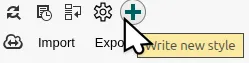
- On the left, click the Write new style button.
- At the top, below Code 1:, change URLs on the domain to URLs starting with.

https://docs.google.com/document/- Paste this CSS code into the main code editor:
/* Hides the floating comment buttons on the right side */.inlineFabBubbleContainer {    visibility: hidden !important;}
/* Hides the "Refine" pop-up for selected text */#docs-instant-bubble {    display: none !important;}
/* Hides the "Ask Gemini" button in the top toolbar */.appsElementsSidekickEntryPointRoot {    display: none !important;}
/* Hides the Gemini pill button at the bottom of the document */.kixWizBarkickWrapper { display: none !important;}- Click the Save button on the left, and make sure the Enabled checkbox for your new style is active.
Step 3: Enjoy a Cleaner Interface
Section titled “Step 3: Enjoy a Cleaner Interface”That’s it! The floating buttons and the “Ask Gemini” button are now hidden, giving you a completely distraction-free editing experience.
Next Step: Organize Your Entire Document
Section titled “Next Step: Organize Your Entire Document”Now that your interface is clean, take your document organization to the next level.
Troubleshooting
Section titled “Troubleshooting”I cannot find the Stylus extension in the toolbar
Section titled “I cannot find the Stylus extension in the toolbar”The Stylus extension needs to be pinned to the browser toolbar. To do this:
- Click the three dots (⋮) in the top right corner of Google Chrome.
- Click Extensions, then Manage Extensions.

- Find the Stylus extension and click Details.
- In the Details page, enable the Pin to toolbar toggle.

Stylus will now appear in your browser toolbar and you can proceed with Step 2.
Last updated: May 14, 2026 — The CSS snippet was expanded based on feedback from a website visitor who pointed out a new Gemini button that had appeared at the bottom of the Google Docs window. Thank you!